Shopify App | Documentation
View Count: Sold Count Product
- Version: 1.0
- Author: CynoInfotech Team
- Published: 14 July, 2025
- Last Update: 14 July, 2025
If you have any questions beyond the scope of this guide, feel free to email us at info@cynoinfotech.com.
Information
Sold count displays how many units of a product have been sold recently — it’s a simple yet effective way to proof and reduce hesitation at the decision point. With real-time or monthly sold data shown directly on the product page, this app motivates customers to take action faster. Whether you're showing 200+ bought in the last month or Selling fast!, this app more conversion rates by making your products feel in-demand. Whether you're launching a new product or promoting a best-seller, Sold Count helps you create momentum and drive results.
View count displays how many counts of a product have been recently view. With real view or an additional manually add count to show in product page. Promotional text is also available in this app on product page.
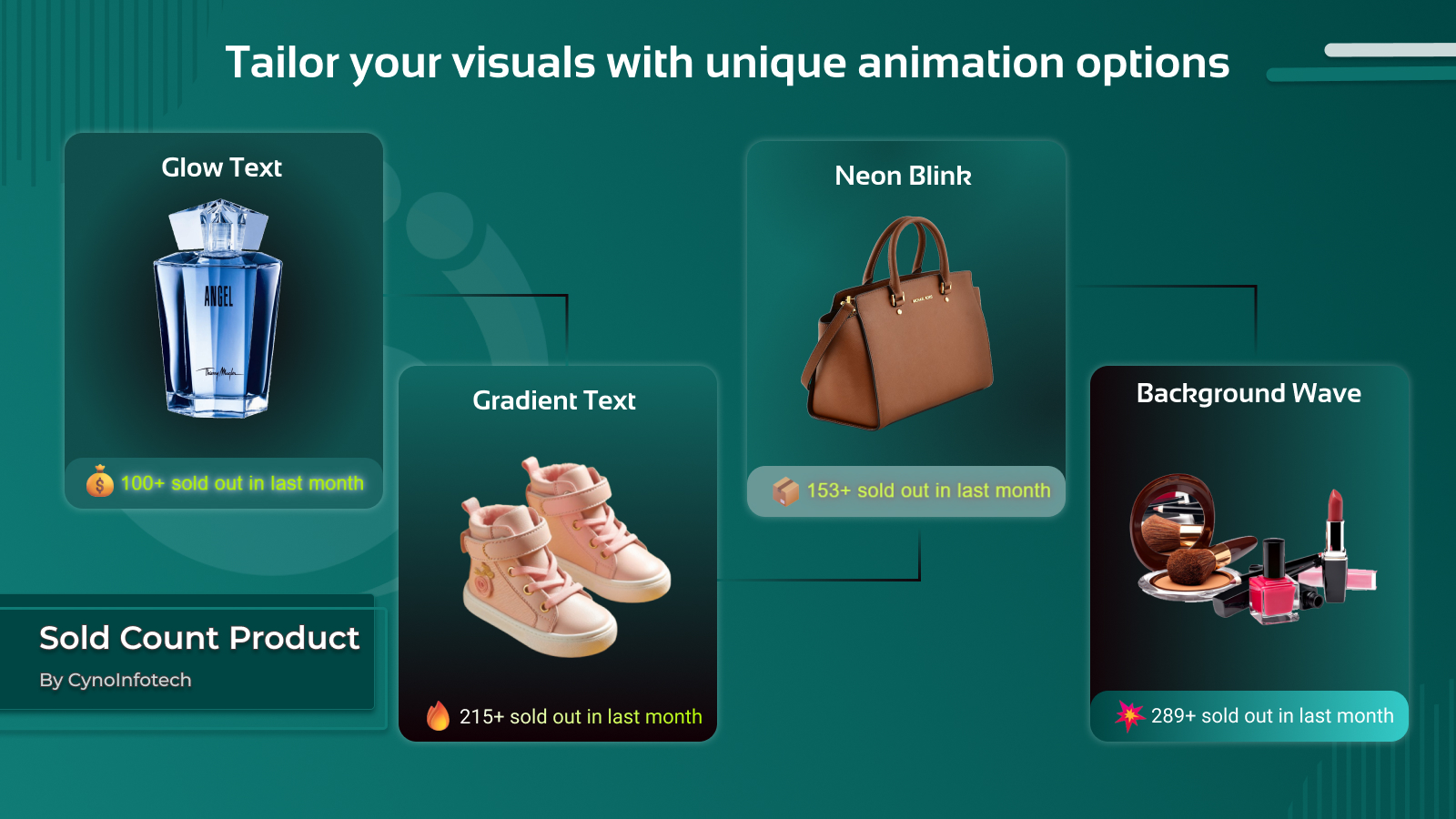
Make your offers stand out with visually dynamic elements like glow effects, animated gradient text, blinking neon highlights, and wave-style background animations. These interactive styles grab attention instantly, enhance user experience, and help drive more clicks and sales on your store.
Perfect for high-volume stores, flash sales, or new brands looking to build credibility quickly.
Key Features:
- Show how many items were sold in the last X days, weeks, or months on product pages.
- Display messages like Hurry! 100+ sold in last month or Selling fast – 50+ sold today, few left only! for Sold Count and 50+ recently view in 2 hours for View Count.
- Automatically update sold counts based on real order data and view count based on real recently view product.
- Add multiple Promotional Text with unique icon based on requirements.
- Enable sold count, view count and promotional text to display on selected products or entire collections.
- Enhance visual appeal and capture customer attention with engaging animations — including glowing text, gradient-colored, neon blinking, and dynamic background waves.
- Easy to install and manage from a user-friendly admin panel.
- Fully responsive design for a clean experience across all devices.
General Configuration
Use this setting for Sold Count Product, View Count Product and Promotion Text.
Enable App
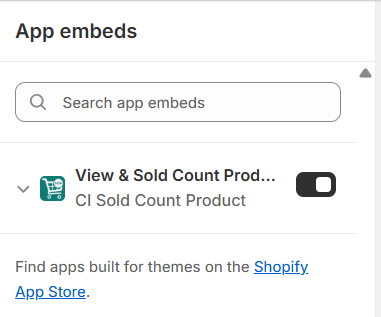
To make View Count: Sold Count Product work properly on your storefront, app embed must be enabled. Click the button below to open your theme editor:
- From your Shopify admin, go to Online Store > Themes.
- Find the theme you want to edit and click Customize.
- In the theme editor, go to App embeds.
- Search for View & Sold Count Product.
- Toggle the switch to enable the CI Sold Count Product.
- Click Save in the editor to apply the changes.
Sold Count Settings
Use this setting for Sold Count Product such as Display on, Time rang for sold items, design customization, hide count for specific number and enable additional sold count.
Display On
You can display the count as your requirements on product page.
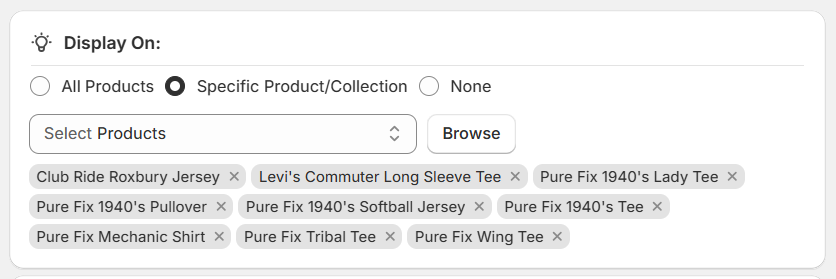
- All Products: Choose this option for display count on all product pages.
- Specific Product/Collection: Choose this option for display count on specific selected products or specific collections product.
- None: If you don't display count on any product page then you can select the none option.
Time Range for Sold Items
This setting use for display count how many sold out products in last days, week or last month.
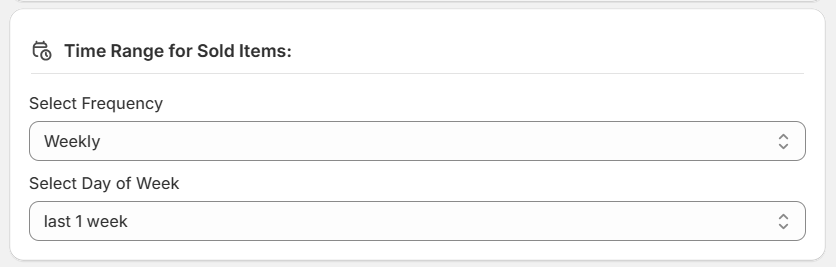
- Select Frequency: Choose this option for display count on all product pages.
- Select Day of Week: Choose this option for display count on specific selected products or specific collections product.
Design Customization
This setting use for design customize to match your store brand.
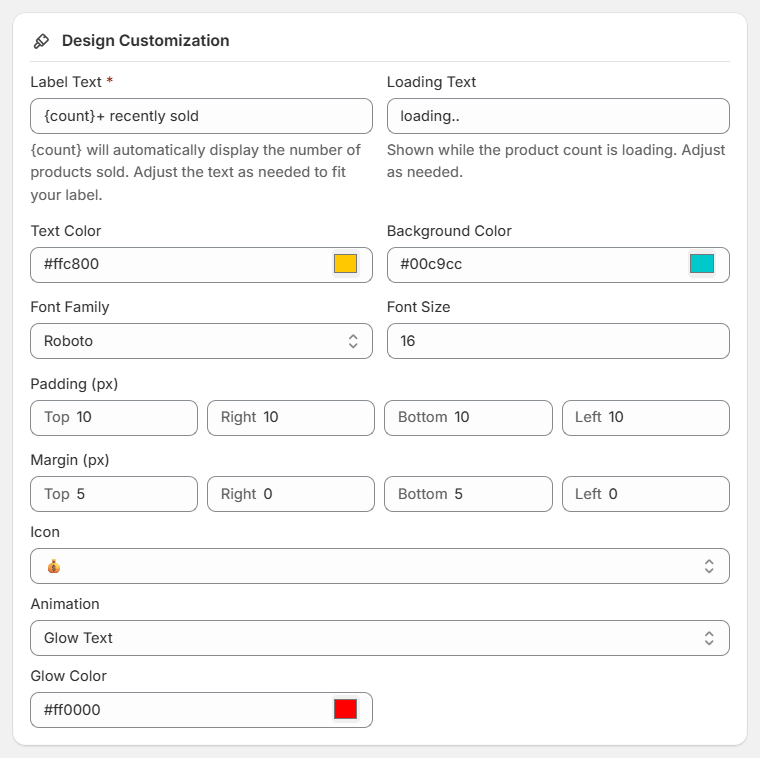
- Label Text: {count} is a variable so it's dynamic so don't change this for dynamic sold count product. You can add static text after this variable. If you don't want to go dynamic then you can add the static number for sold count product.
- Loading Text: You can add the loading text as your requirement.
- Text Color: You can add the sold count product text color.
- Background Color: If you want add background color then select the color as your store or as required.
- Font Family: You can add the font from the dropdown selection.
- Font Size: You can add the font size as required.
- Padding: You can apply the padding uniformly or customized on each side (top, right, bottom, left) to suit the layout needs.
- Margin: You can apply the margin uniformly or individually to the top, right, bottom, and left sides.
- Icon: You can select the icon from this selection. If you have not find icon as you need then add custom icon in Label Text via copy and paste directly.
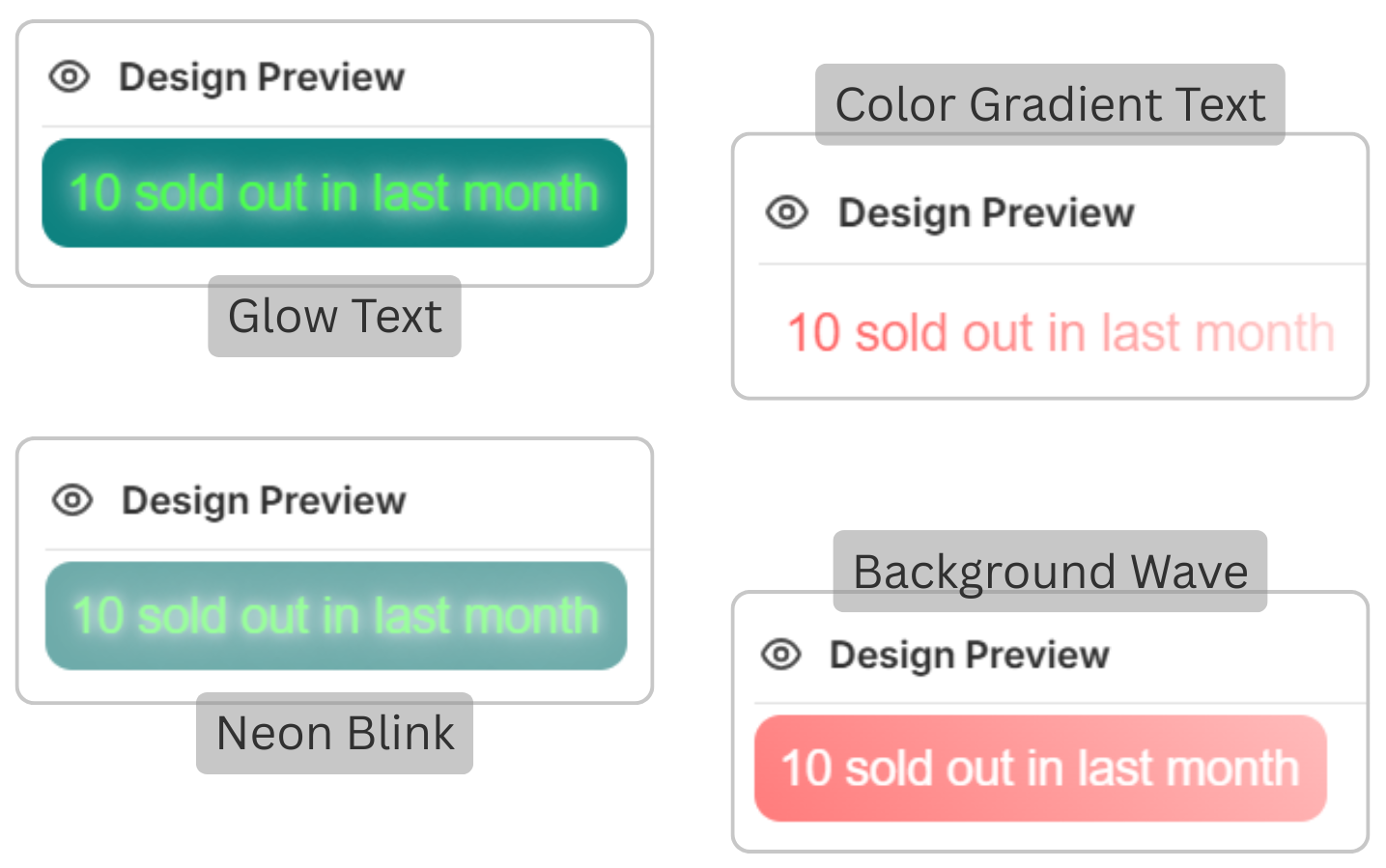
- Animation: You can apply the animation of sold count product text.
- Glow Text: You can add the glow color only on text.
- Color Gradient: Works with only the Gradient Start and Gradient End with text color only. Background color is not apply.
- Neon Blink: Works with the Background color and Neon Color for text.
- Background Wave: Works with the Wave start and Wave End on Background also you can set the color from above text color option and backgroung color option.
Hide Count for Sold Count
This setting use for hide count if it's less than a specific number.
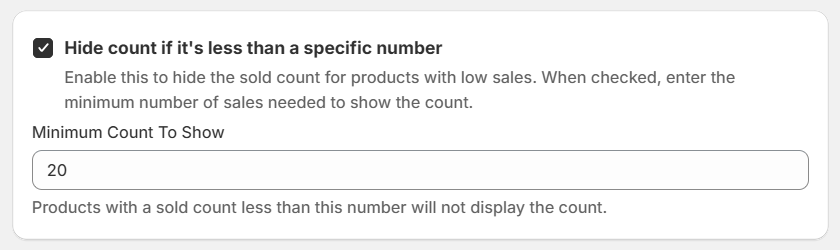
- Hide Count: If you don't display count on any product page then you can select the none option.
Display verified badge
This setting use for Display verified badge for social proof.
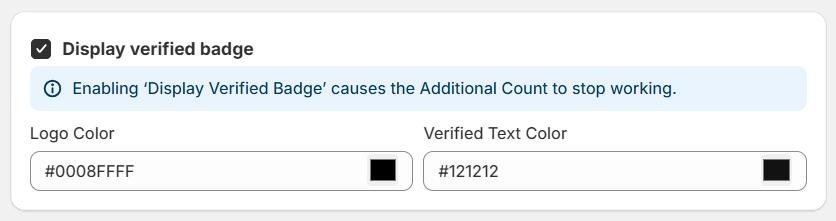
- Logo Color: You can change the default icon color from here.
- Verified Text Color: You can change the Verified badge text color from here.
Enable Additional Sold Count
This setting use for show sold count if you want to add additional sold count number.
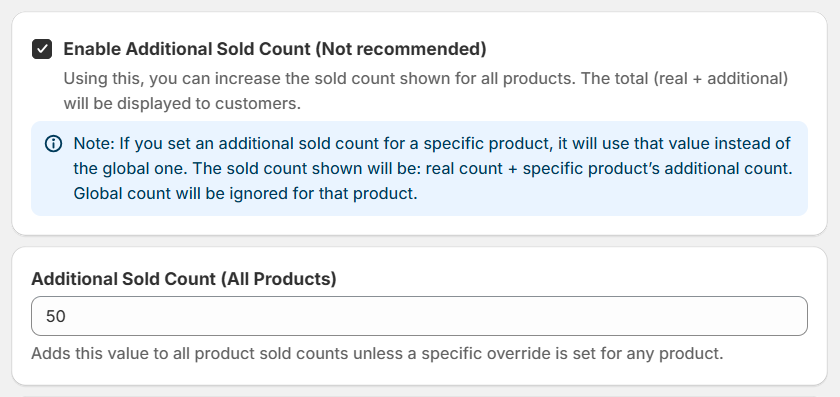
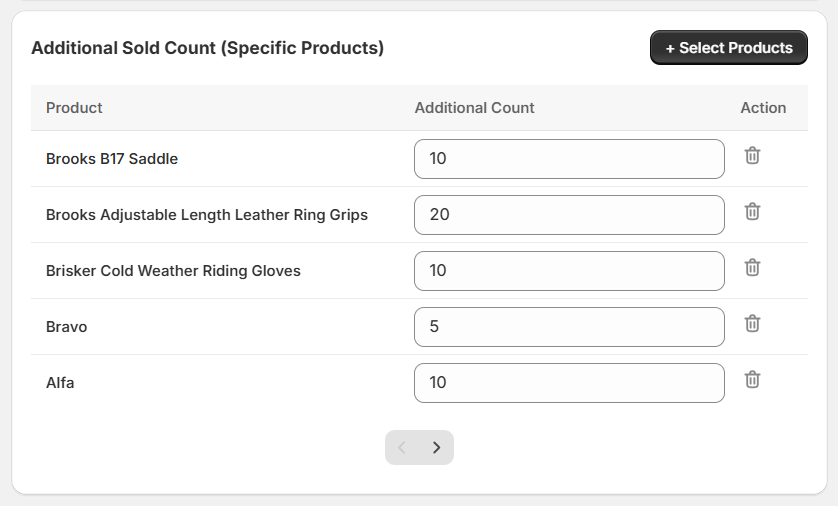
- You can add the additional number for All Products, it's shows on frontend real+additional sold count number.
- You can add the additional number for Specific Products, it's shows on frontend real+additional sold count number.
- Note: If you set the number in both all products and specific products, the specific product number will be overridden.
Design Preview
This is design preview as your settings.
Add Block: Sold Count Product
You can add sold count product from here directly.
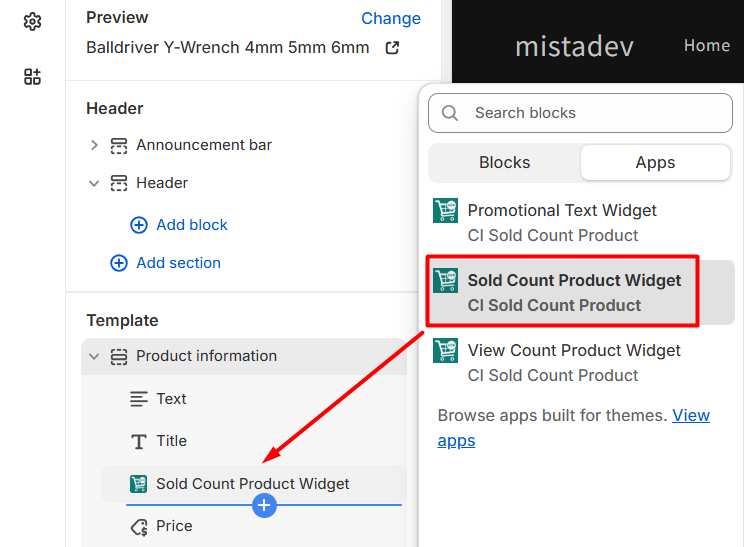
- You can add the widget on product page directly from admin.
- After add the widget you can move the position as your requirements.
View Count Settings
Use this setting for View Count such as Display on, Time rang for view items, design customization, hide count for specific number and enable additional view count.
Display On
You can display the count as your requirements on product page.
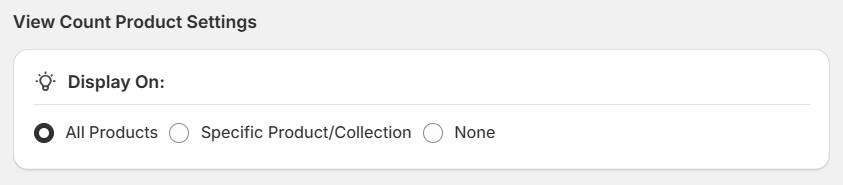
- All Products: Choose this option for display count on all product pages.
- Specific Product/Collection: Choose this option for display count on specific selected products or specific collections product.
- None: If you don't display count on any product page then you can select the none option.
Time Range for View Items
This setting use for display count how many view product in minutes, hours or days.
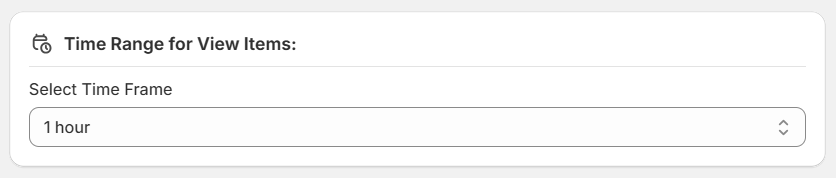
- Select Time: Choose this option for display count on all product pages.
Design Customization
This setting use for design customize to match your store brand.
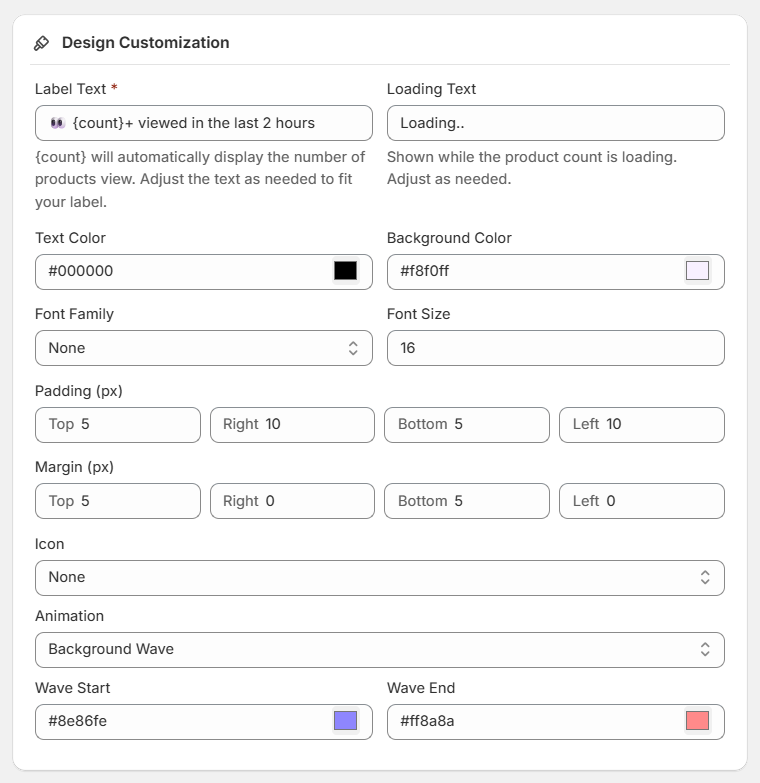
- Label Text: {count} is a variable so it's dynamic so don't change this for dynamic view count product. You can add static text after this variable. If you don't want to go dynamic then you can add the static number for view count product.
- Loading Text: You can add the loading text as your requirement.
- Text Color: You can add the view count product text color.
- Background Color: If you want add background color then select the color as your store or as required.
- Font Family: You can add the font from the dropdown selection.
- Font Size: You can add the font size as required.
- Padding: You can apply the padding uniformly or customized on each side (top, right, bottom, left) to suit the layout needs.
- Margin: You can apply the margin uniformly or individually to the top, right, bottom, and left sides.
- Icon: You can select the icon from this selection. If you have not find icon as you need then add custom icon in Label Text via copy and paste directly.
- Animation: You can apply the animation of view count product text.
- Glow Text: You can add the glow color only on text.
- Color Gradient: Works with only the Gradient Start and Gradient End with text color only. Background color is not apply.
- Neon Blink: Works with the Background color and Neon Color for text.
- Background Wave: Works with the Wave start and Wave End on Background also you can set the color from above text color option and backgroung color option.
Hide Count for View Count
This setting use for hide count if it's less than a specific number.
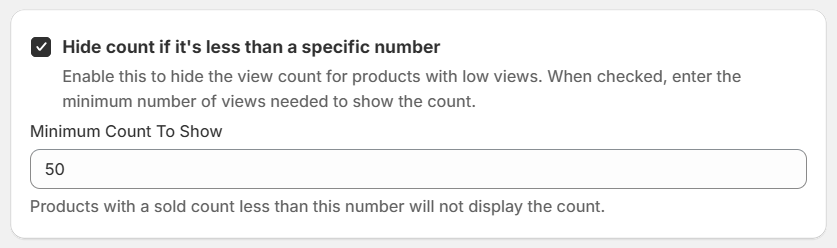
- Hide Count: If you don't display count on any product page then you can select the none option.
Enable Additional View Count
This setting use for show view if you want to add additional view count number.
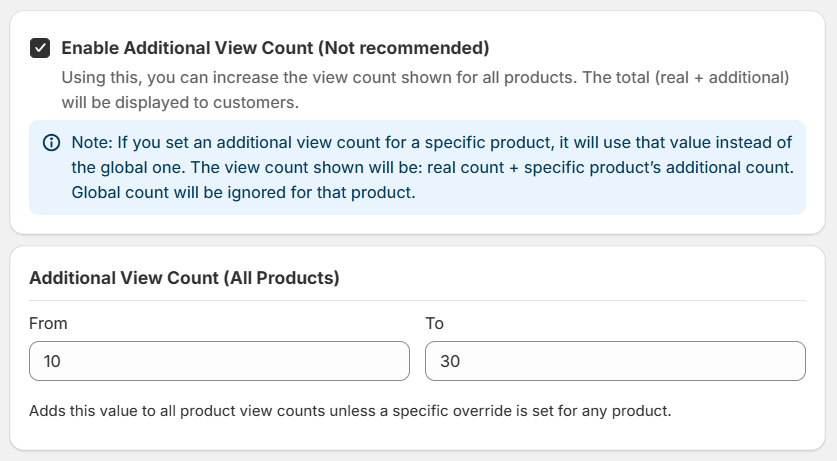
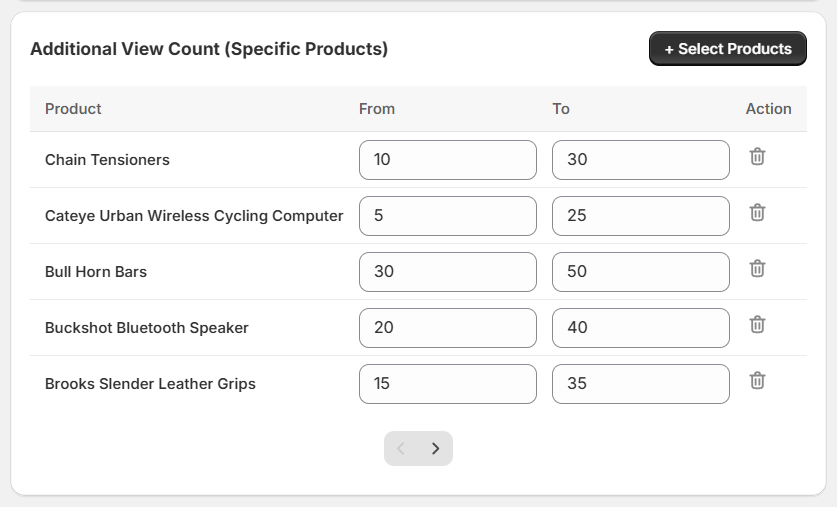
- You can add the additional number for All Products, it's shows on frontend real+additional view count number.
- You can add the additional number for Specific Products, it's shows on frontend real+additional view count number.
- Note: If you set the number in both all products and specific products, the specific product number will be overridden.
Add Block: View Count
You can add view count product from here directly.
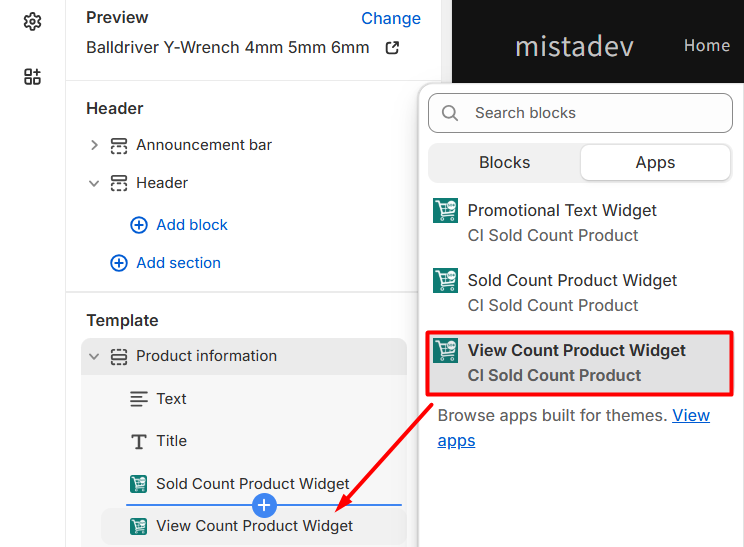
- You can add the widget on product page directly from admin.
- After add the widget you can move the position as your requirements.
Promotion Text Settings
Use this setting for Promotion text such as Display on, Add multiple promotional text and design customization.
Display On
You can display the promotional text as your requirements on product page.
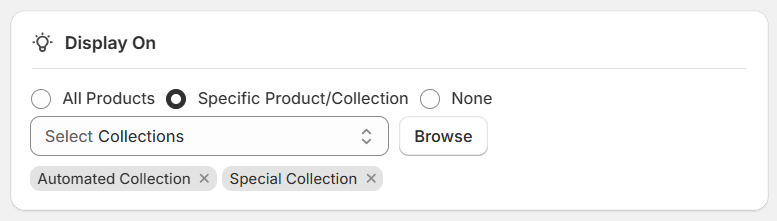
- All Products: Choose this option for display count on all product pages.
- Specific Product/Collection: Choose this option for display count on specific selected products or specific collections product.
- None: If you don't display count on any product page then you can select the none option.
Add Promotional Text
This setting use for add multiple promotional text as .
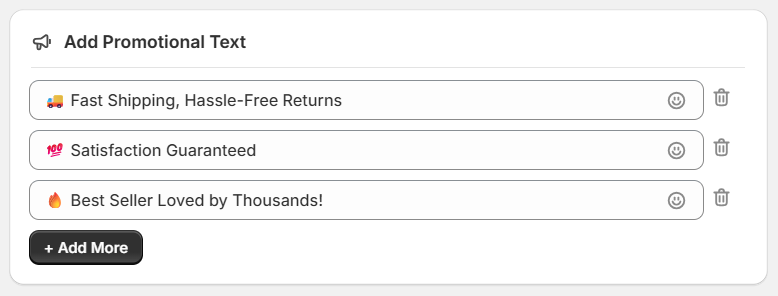
- Add Promotional Text: You can add text with icon such as, funny smily emogy😀, objects, symbol and many more.
Design Customization
This setting use for design customize to match your store brand.
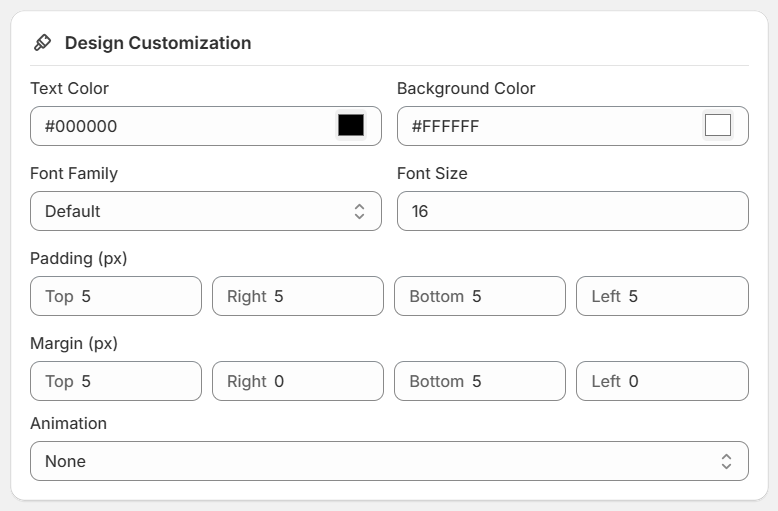
- Text Color: You can add the promotional text color.
- Background Color: If you want add background color then select the color as your store or as required.
- Font Family: You can add the font from the dropdown selection.
- Font Size: You can add the font size as required.
- Padding: You can apply the padding uniformly or customized on each side (top, right, bottom, left) to suit the layout needs.
- Margin: You can apply the margin uniformly or individually to the top, right, bottom, and left sides.
- Animation: You can apply the animation of promotional text.
- Glow Text: You can add the glow color only on text.
- Color Gradient: Works with only the Gradient Start and Gradient End with text color only. Background color is not apply.
- Neon Blink: Works with the Background color and Neon Color for text.
- Background Wave: Works with the Wave start and Wave End on Background also you can set the color from above text color option and backgroung color option.
Add Block: Promotional Text
You can add promotional text from here directly.
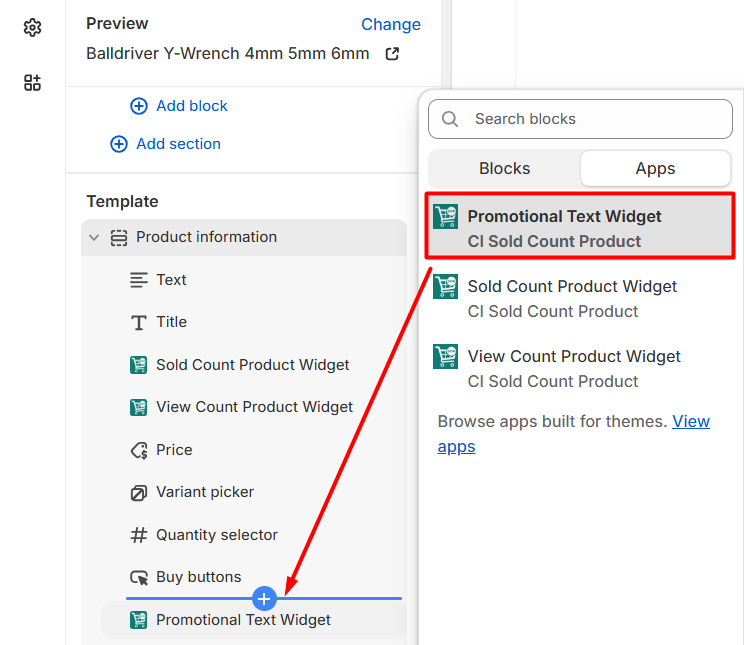
- You can add the widget on product page directly from admin.
- After add the widget you can move the position as your requirements.
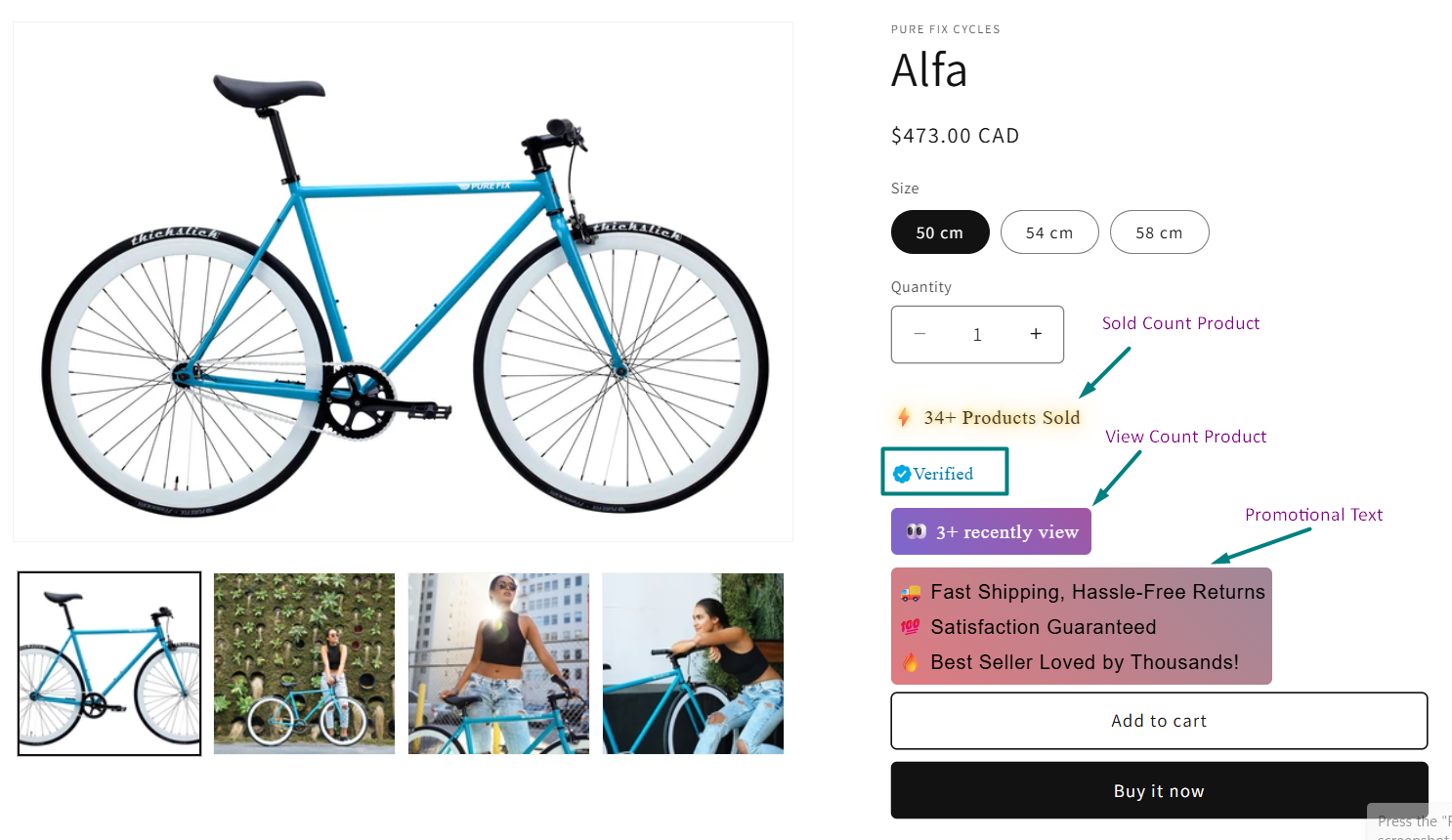
Display on Frontend
You can see the animation on product page.
Support
If this documentation doesn't answer your questions, please feel free to email us at info@cynoinfotech.com
Our support team operates in the GMT +5:30 time zone and responds to all inquiries within 12-24 hours on weekdays. In rare cases, the response time may extend to 48 hours, especially during the holidays, which may take longer..
Please don't forget to rate our app 5 stars ( ) on the App Store if you are satisfied with our app and customer support! Your feedback is greatly appreciated and helps us improve our services. Thank you!
Changelog
See what's new added, changed, fixed, improved or updated in the latest versions.
Version 1.1 (18 August, 2025)
- Added Add Verified Badge for Social Proof in Sold Count.
- Added Add icon and additional count for Sold Count.
- Added Add View Count and Promotional Text.
Version 1.0 (9 July, 2025)
Initial Release