Shopify App | Documentation
CI Low Stock Counter
- Version: 1.0
- Author: CynoInfotech Team
- Published: 19 March, 2026
- Last Update: 19 March, 2026
If you have any questions beyond the scope of this guide, feel free to email us at info@cynoinfotech.com.
Information
Low Stock Counter creates urgency and scarcity by showing real-time inventory alerts on your product and collection pages — messages like "Only 3 left" or "Selling fast" that nudge customers to buy before the product sells out.
Choose from five message types, each fully customizable (text, colors, background, progress bar, animation), and control exactly which products, collections, and pages they appear on.
Key Features
- 1Five message types: Continue Selling, Out of Stock, Only 1 Left, Low Stock Warning, Full Stock
- 2Live
{available-stock}variable inserts the exact remaining quantity - 3Custom icon, colors, background, progress bar & animation per message
- 4Apply to All Products or Specific Product/Collection
- 5Independent visibility for Product Page & Collection Page
- 6Supports paginated and infinite scroll/load more collections
- 7Reposition the widget anywhere via the theme editor's App Block
- 8Updates automatically as customers switch product variants
Enable App
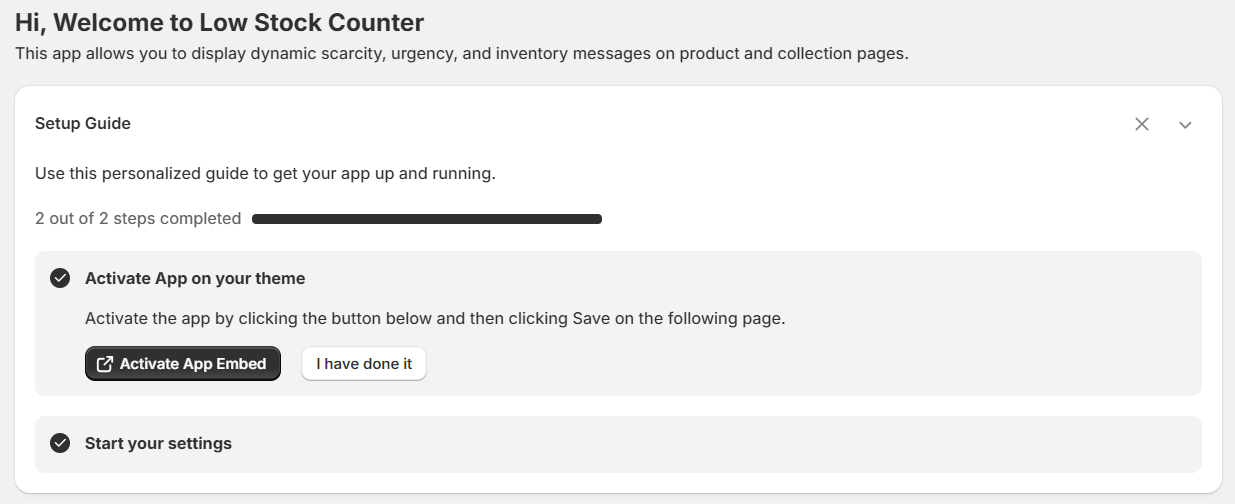
Open the Setup Guide on the app dashboard, click Activate App Embed, then Save in the theme editor. Return to the guide and click I have done it — once both steps show complete, the app is live on your storefront.
General Configuration
Settings are split across two tabs: General (the five message types) and Visibility & Element Selectors (where the widget appears).
General
All five message types below share the same set of fields. Rather than repeat them five times, here's the shared reference — each message type section afterward only calls out what's unique to it.
| Field | Type | Description |
|---|---|---|
Icon | Select | Icon shown next to the message (e.g. Red Pulse, Orange Pulse, Blue Pulse, Gray Pulse). |
Text Message | Text | The main message line. On Low Stock Warning and Full Stock Display, use the {available-stock} variable to insert the live remaining quantity. |
Text Color | Color | Color of the main message text. |
Font Size | Number | Size (px) of the main message text. |
Sub Text Message | Text | An optional second line of supporting text. |
Sub Text Color | Color | Color of the sub text. |
Sub Text Font Size | Number | Size (px) of the sub text. |
Enable to show background | Toggle | Turns on a background color behind the message, with its own color picker. |
Show progress bar | Toggle | Turns on a progress bar under the message, with its own Width (%) and color. |
Animation | Select | Entrance effect for the message — None, Zoom In/Out, etc. |
Display Field on Collection Page | Checkboxes | Independently choose whether SubText, Background, Progress bar and Animation also appear on the collection page (product page always shows the full message). |
Applies to | Radio | All Products, or Specific Product/Collection via the Browse picker. |
Every message type also shows a live Product Page Preview and Collection Page Preview alongside the settings as you edit them.
Continue Selling if Out of Stock
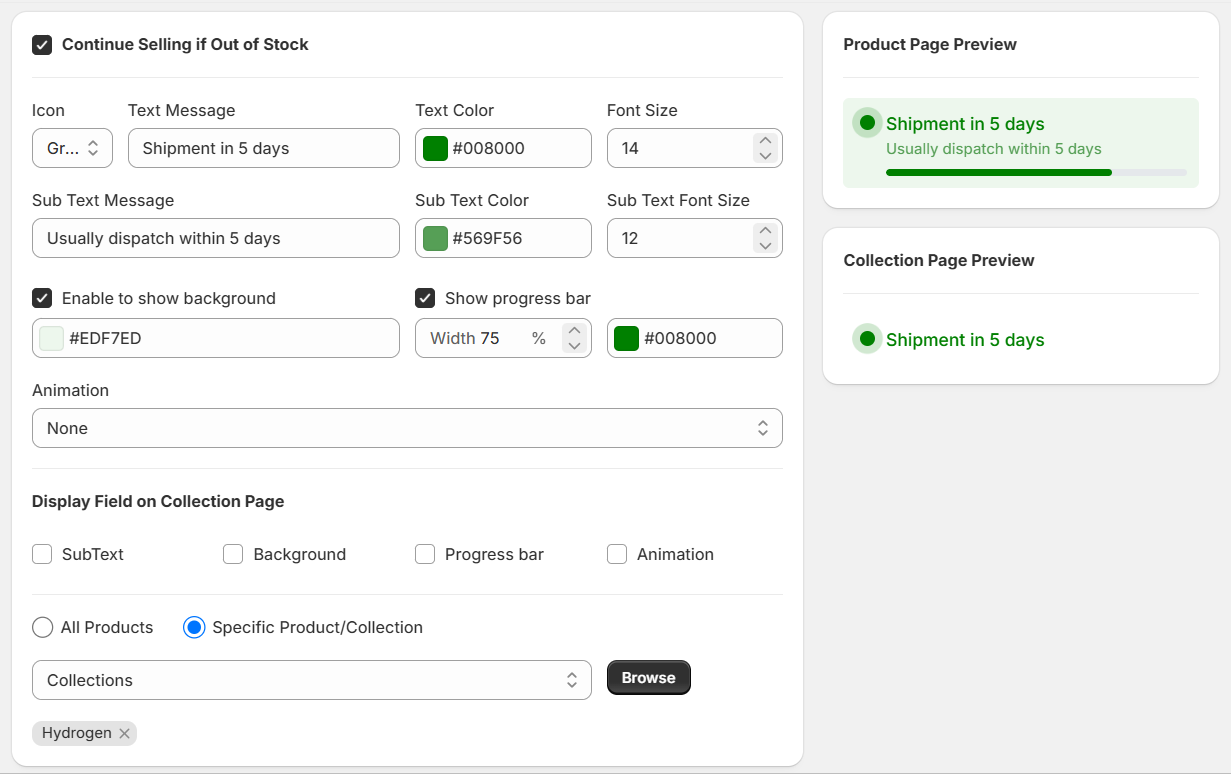
Shown when a product's inventory reaches 0 but "Continue selling when out of stock" is enabled in Shopify — typically for pre-orders or backorders.
| Default text | "Shipment in 5 days" / "Usually dispatch within 5 days" |
| Unique fields | None — uses only the shared fields above. |
Out of Stock Alert
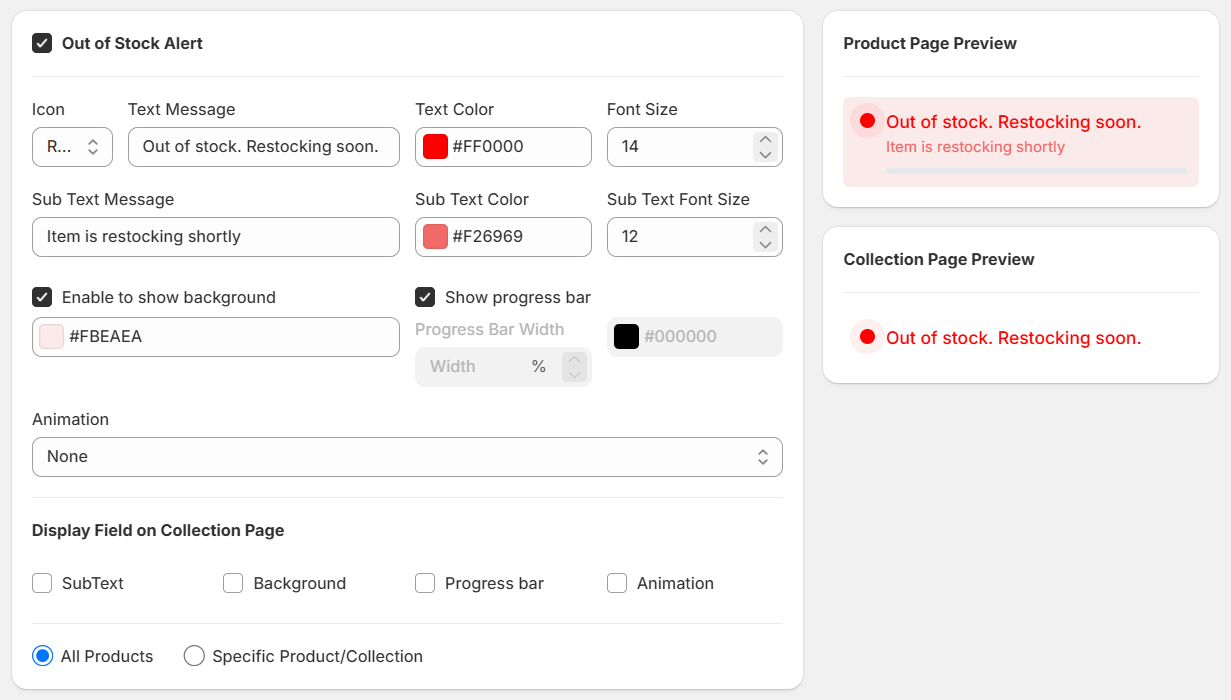
Shown when a product's inventory is 0 and it is not set to continue selling.
| Default text | "Out of stock. Restocking soon." / "Item is restocking shortly" |
| Unique fields | None — Progress Bar Width is fixed for this message type since stock is at zero. |
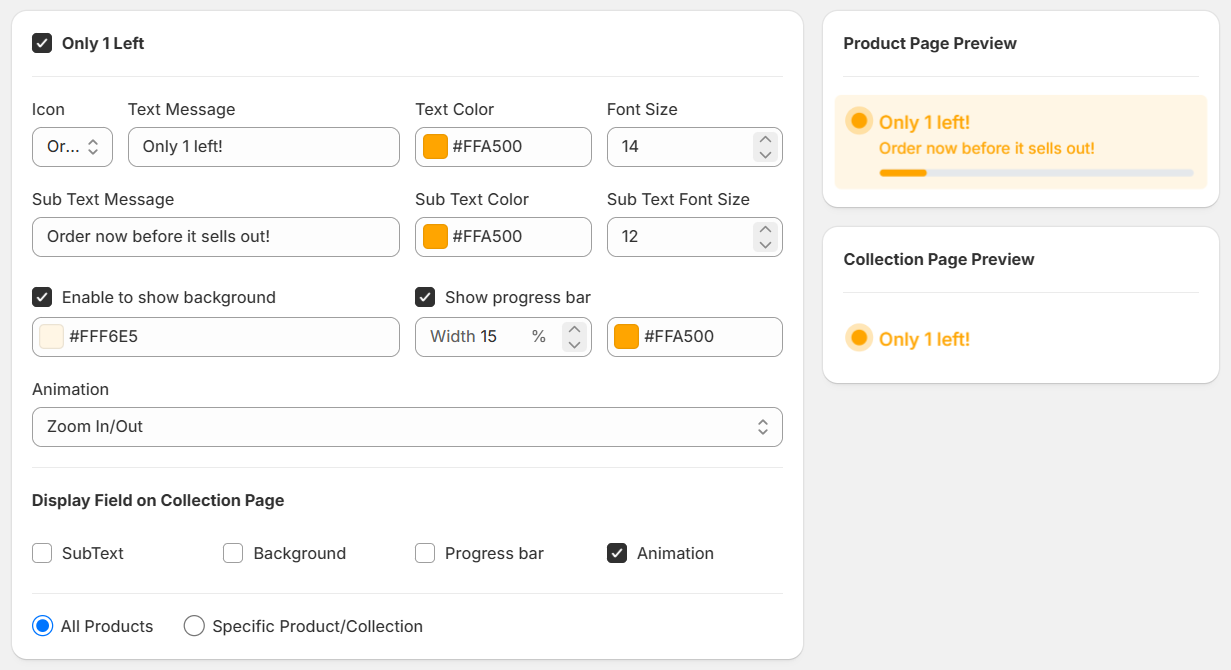
Only 1 Left
Shown when a variant's inventory drops to exactly 1 unit — the highest-urgency message.
| Default text | "Only 1 left!" / "Order now before it sells out!" |
| Unique fields | None — defaults to the Zoom In/Out animation for extra emphasis. |
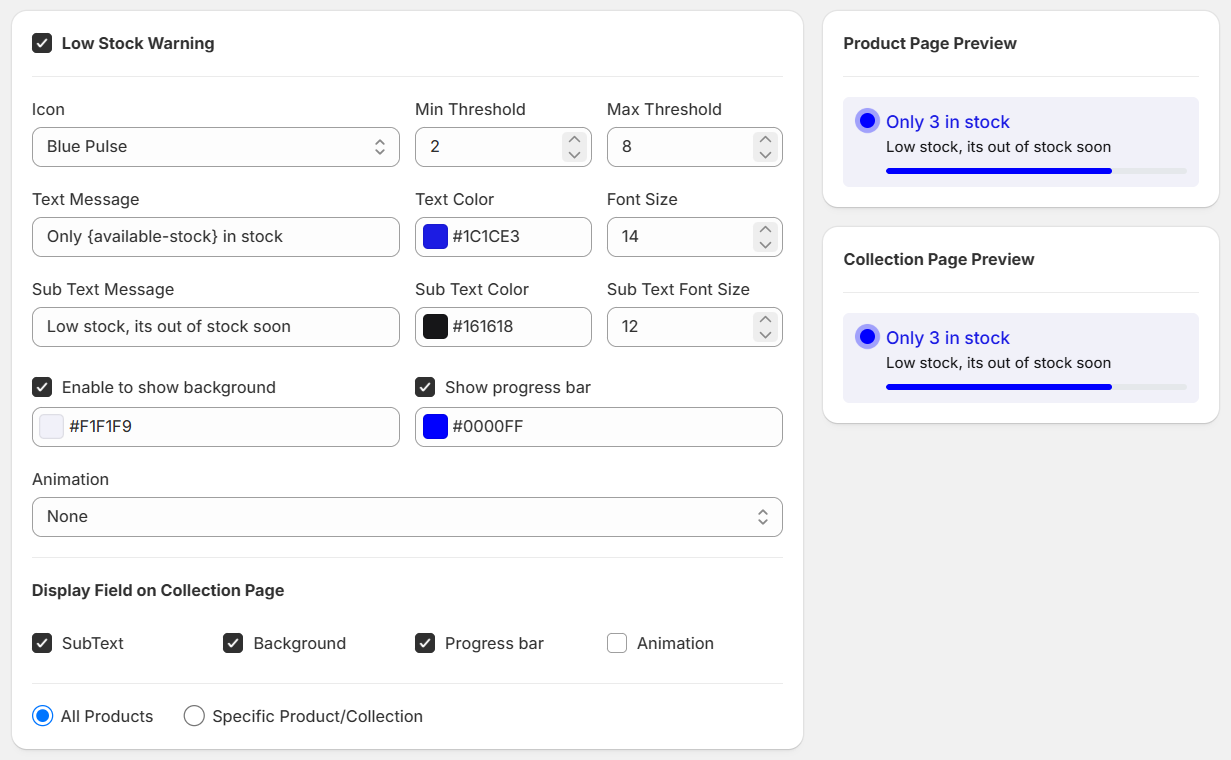
Low Stock Warning
Shown when a product's inventory falls within a min/max range — the early-warning tier.
| Default text | "Only {available-stock} in stock" / "Low stock, its out of stock soon" |
| Unique fields | Min Threshold and Max Threshold — the inventory range that triggers this message (e.g. 2–8). |
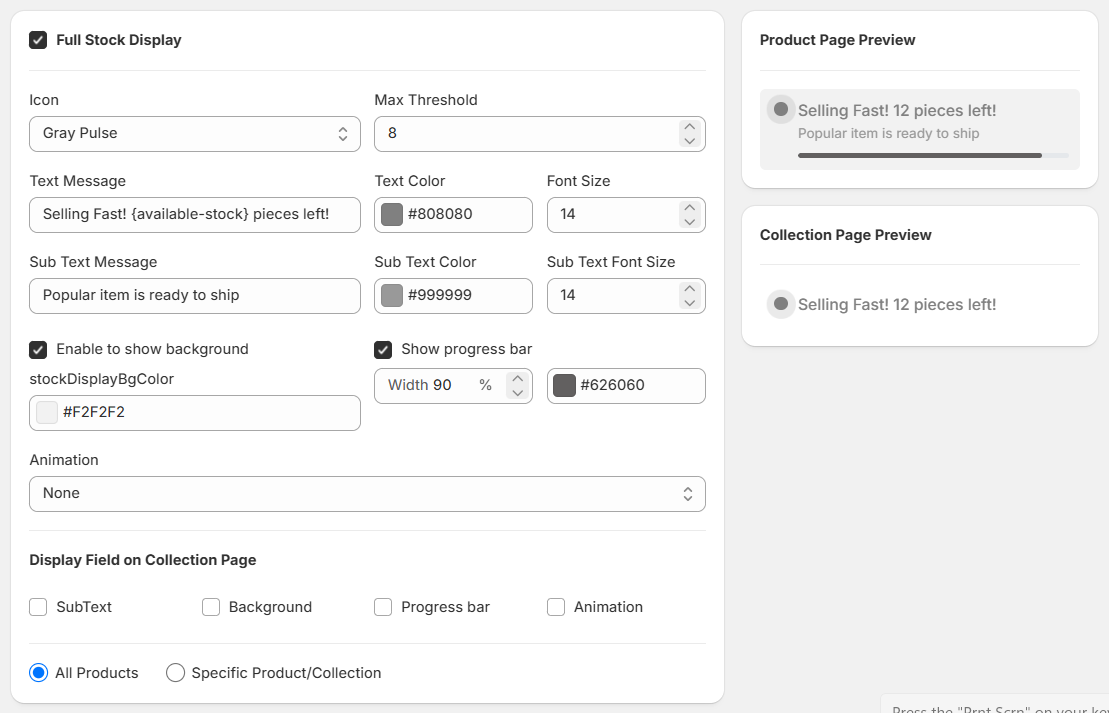
Full Stock Display
Shown while inventory is still healthy but under a maximum threshold — an early "selling fast" nudge, one tier above Low Stock Warning.
| Default text | "Selling Fast! {available-stock} pieces left!" / "Popular item is ready to ship" |
| Unique fields | Max Threshold only — the inventory count below which this message appears (e.g. 8). |
Visibility & Element Selectors
Switch to this tab to control where the widget appears, and add custom classes if you're using a custom theme.
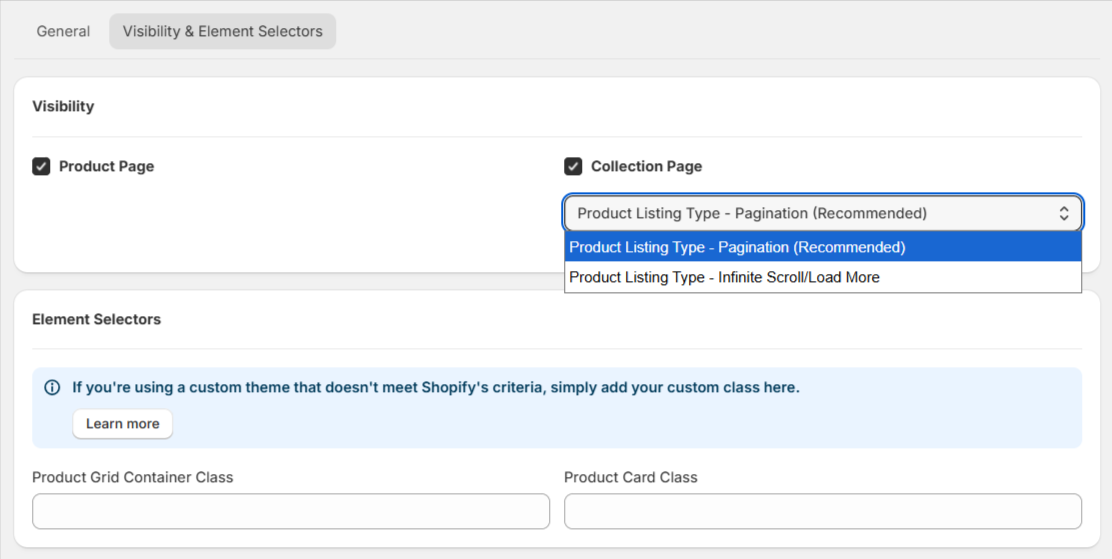
Visibility
| Field | Type | Description |
|---|---|---|
Product Page | Toggle | Show or hide the widget on the product page. |
Collection Page | Toggle | Show or hide the widget on the collection page. |
Product Listing Type | Select | Pagination (Recommended) for standard paginated collections, or Infinite Scroll/Load More if your theme loads products dynamically. |
Element Selectors
If your theme doesn't meet Shopify's criteria and the widget doesn't appear correctly, add its custom classes here. Click Learn more in the app for help finding them.
| Field | Description |
|---|---|
Product Grid Container Class | e.g. .grid li |
Product Card Class | e.g. .product-card |
App Block
Reposition the Low Stock Widget anywhere on your product page using the theme editor's app block.
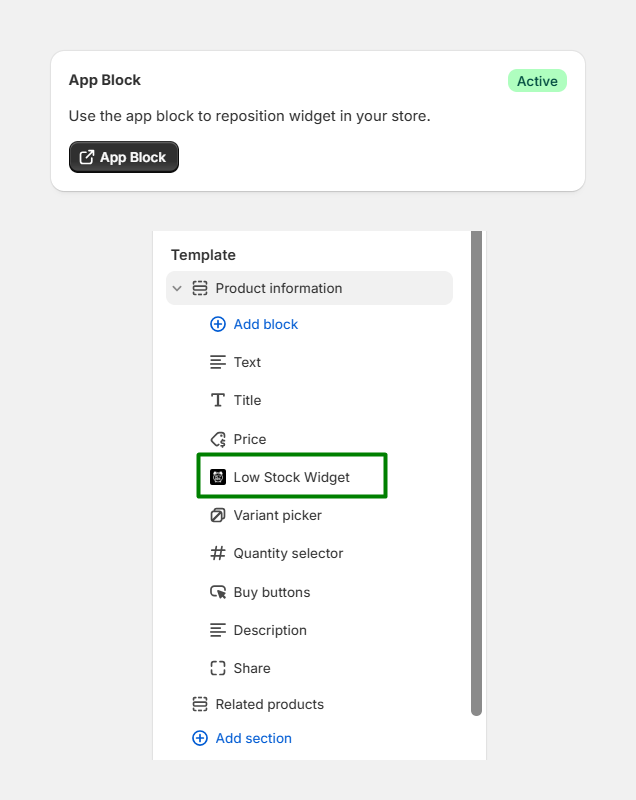
- Click App Block on the app dashboard — this opens your theme editor on the product template.
- Under Product information, find the Low Stock Widget block (already added).
- Drag it above/below the price, above the Buy buttons, below the title, or wherever fits your layout.
- Click Save.
Display On Frontend
You can see the alert messages on Collection Page and Product Page.
Support
If this documentation doesn't answer your questions, please feel free to email us at info@cynoinfotech.com
Our support team operates in the GMT +5:30 time zone and responds to all inquiries within 12-24 hours on weekdays. In rare cases, the response time may extend to 48 hours, especially during the holidays, which may take longer..
Please don't forget to rate our app 5 stars ( ) on the App Store if you are satisfied with our app and customer support! Your feedback is greatly appreciated and helps us improve our services. Thank you!
Changelog
Version 1.1 (13 Aug, 2026)
-
Added
-
Updated
Version 1.0 (19 March, 2026)
Initial Release