Shopify App | Documentation
CI Hide Price
- Version: 1.0
- Author: CynoInfotech Team
- Published: 9 June, 2025
- Last Update: 9 June, 2025
If you have any questions beyond the scope of this guide, feel free to email us at info@cynoinfotech.com.
Information
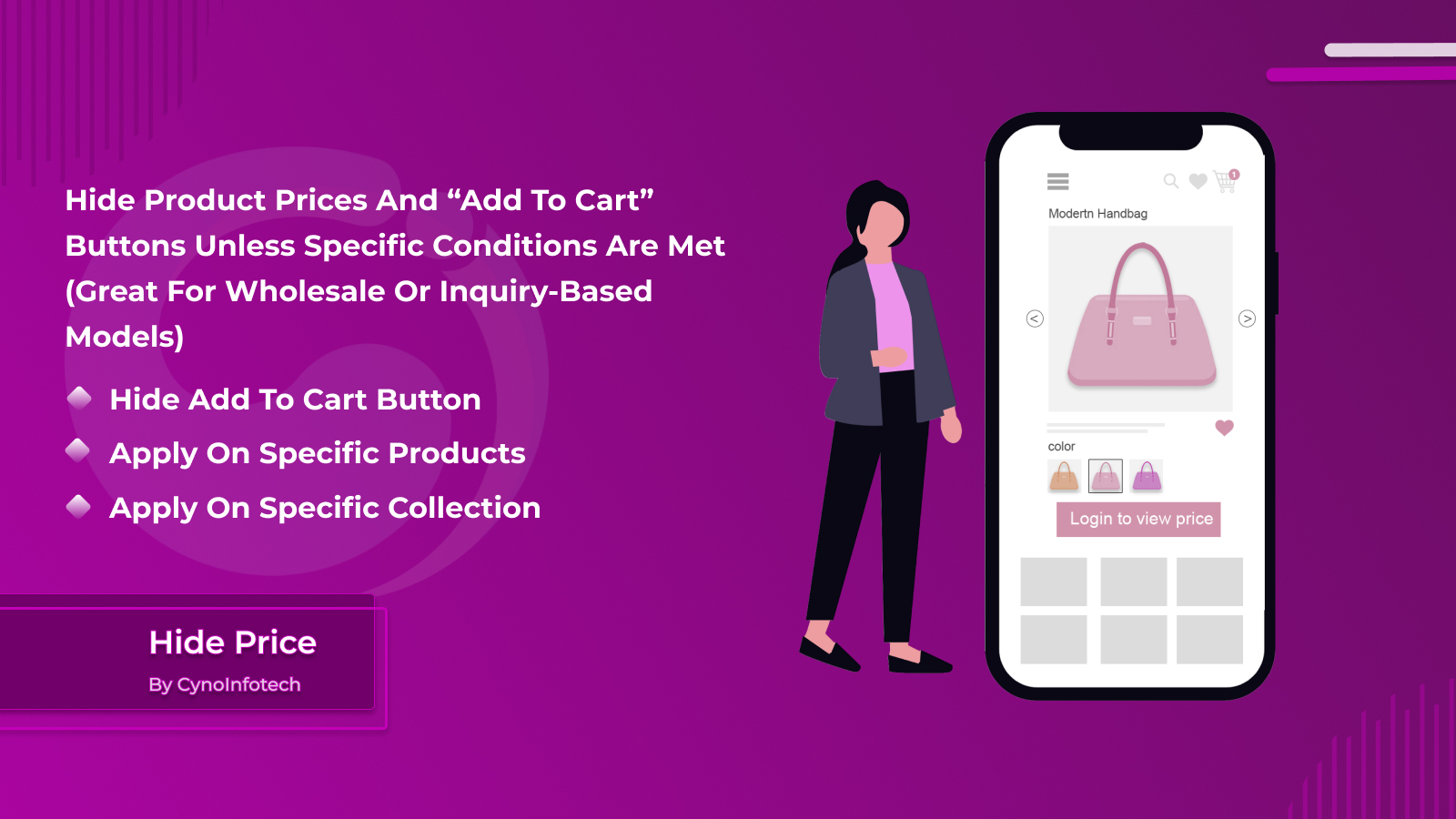
Hide Price app for those users who are not logged in on the website. If the user wants to show the price of the product they need to login to the website. After login, on the website, the user shows the price and adds to the cart button of any products.
Product price is the most important part of an eCommerce website. A store owner has to decide if the price of the products will be visible or not for customers. Store owners can hide prices to encourage upgrading to a customer group, and increase customer signups, specific products, or collections.
Using this app, the store owner can easily manage prices on the product page and the collection page. Store owner can quickly collect customer information and send notifications for various future store offers and updates.
Key Features:
- Set hide price for not Login Users.
- Allows specific product.
- Allows specific collection.
- After login user can show the price and add it to the cart button of the product.
- Increase registered customer on the web.
- Replace the price with custom text and the AddToCart button with a custom button.
Settings
These are the app settings where you can effortlessly configure or customize design for Hide Price, Applies to Products and Element Selectors for custom theme.
Enable App
Use this setting to enable for hide price app.
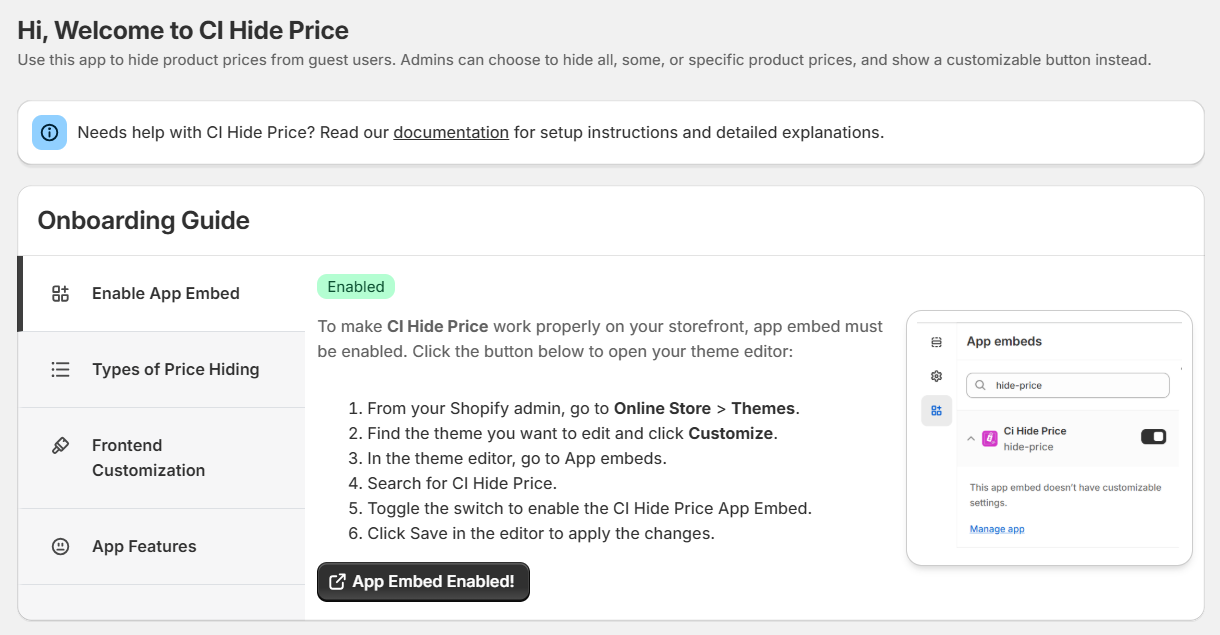
To make CI Hide Price work properly on your storefront, app embed must be enabled. Click the button below to open your theme editor:
- From your Shopify admin, go to Online Store > Themes.
- Find the theme you want to edit and click Customize.
- In the theme editor, go to App embeds.
- Search for CI Hide Price.
- Toggle the switch to enable the CI Hide Price App Embed.
- Click Save in the editor to apply the changes.
Design Settings
Design the button as your theme with text or background color and many more.
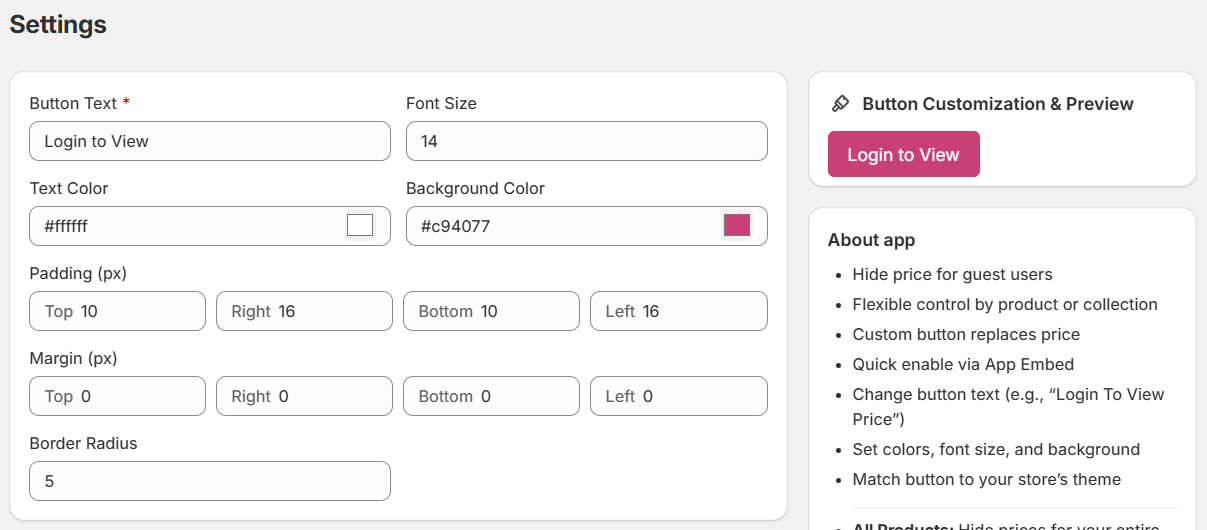
- You can change the button text.
- You can change the button font size.
- You can change the button text color as your theme.
- You can change the button background color as your theme.
- You can add button padding or margin for button.
- You can add button border radius.
Applies To
Select the options for your store where you want to hide the price.

- You can choose option All to hide the price in all products.
- You can choose option Specific Product to hide the price in selected product.
- You can choose option Specific Collection to hide the price in selected collection.
Element Selectors
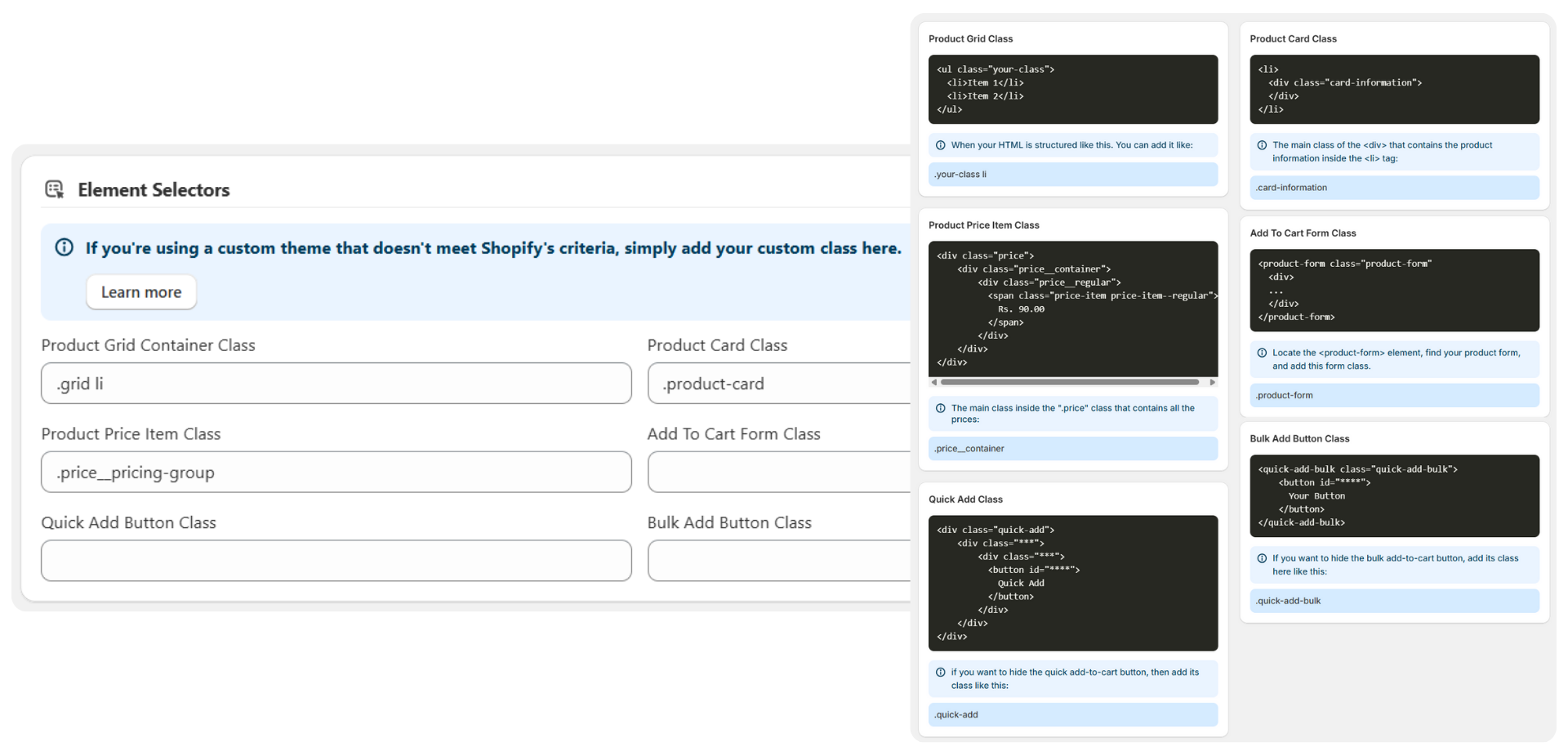
If you have a custom theme and don't appear or any facing issue to Hide Price or Add to cart button then you can add the custom Class as per the examples.
Examples:
- Product Grid Container Class: For collection list add Grid class .grid li If you your collection list is as list layout then you can add according it.
- Product Card Class: For collection list or other list such as Related product slider and You may also like then add Card class .product-card
- Product Price Item Class: For price and price group such as regular price, sale price or others then add Product Price class according it .price__pricing-group
- Add To Cart Form Class: For collection list, product page or any other list you have then add form class .product-form
- Quick Add Button Class: If you have quick button or choose options like as dawn theme on collection page then add class .quick-add
- Bulk Add Button Class: Same as dawn theme on collection page then add quantity button class .quick-add-bulk
Applied on Frontend
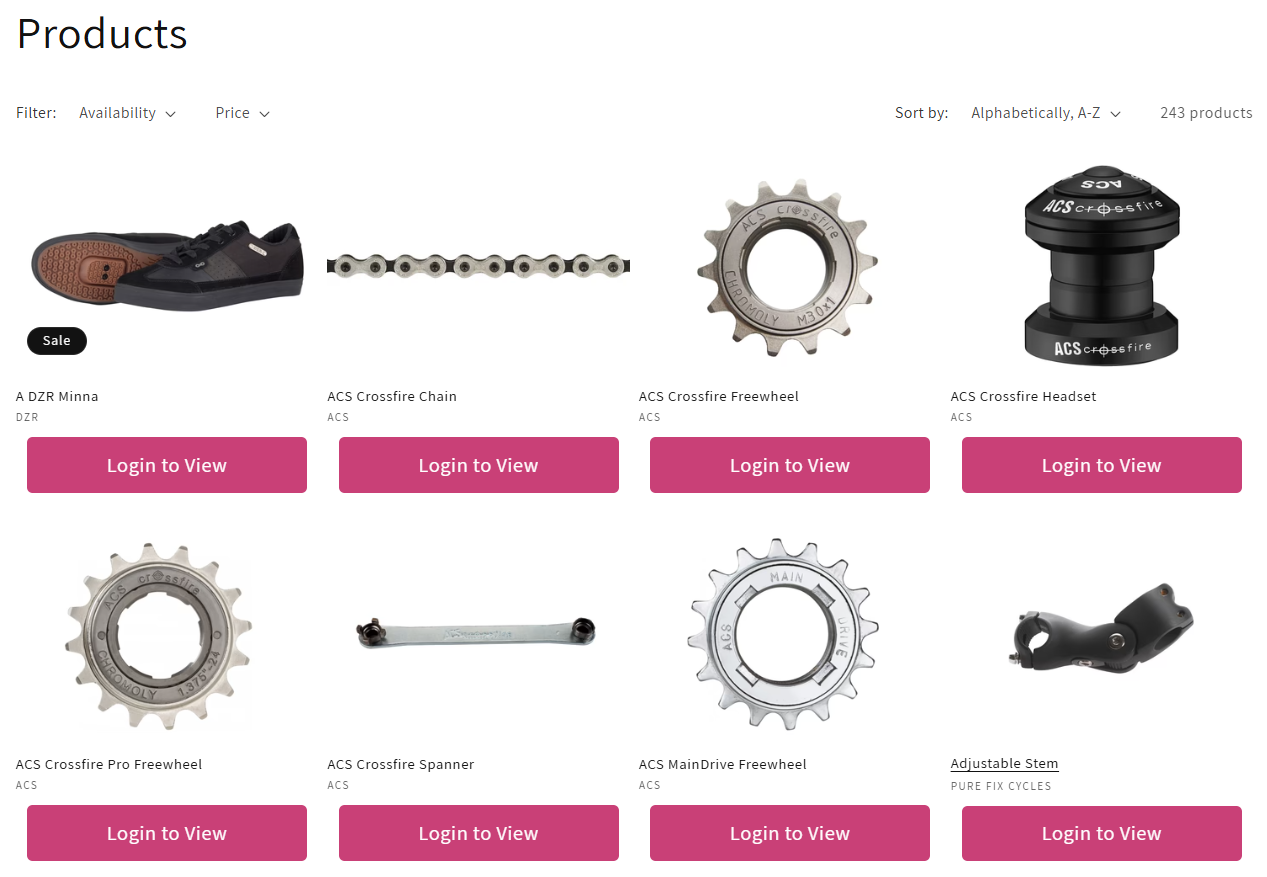
Hide price works with products.
Collection Page
You can see the Login to View button and price is hide on Collection Page.
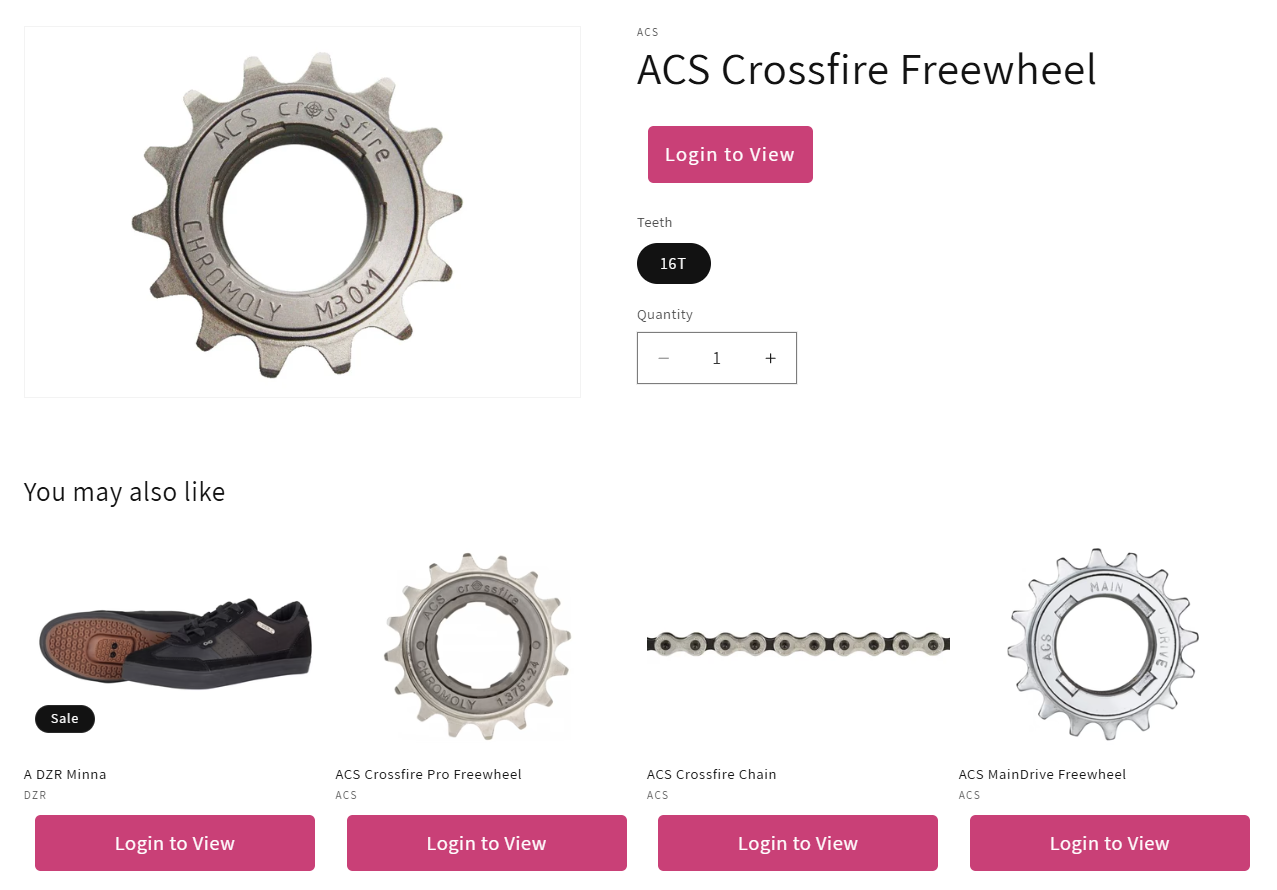
Product Page
You can see the Login to View button and price is hide on Product Page.
Support
If this documentation doesn't answer your questions, please feel free to email us at info@cynoinfotech.com
Our support team operates in the GMT +5:30 time zone and responds to all inquiries within 12-24 hours on weekdays. In rare cases, the response time may extend to 48 hours, especially during the holidays, which may take longer..
Please don't forget to rate our app 5 stars ( ) on the App Store if you are satisfied with our app and customer support! Your feedback is greatly appreciated and helps us improve our services. Thank you!
Changelog
Version 1.0 (9 June, 2025)
Initial Release